Google Images
Discover Google Images, the comprehensive image search engine with reverse image search capabilities. Find similar images, filter by size and color, access advanced search options, and explore visual content across the web. Perfect for designers, researchers, and content creators seeking reliable image sources and visual references.
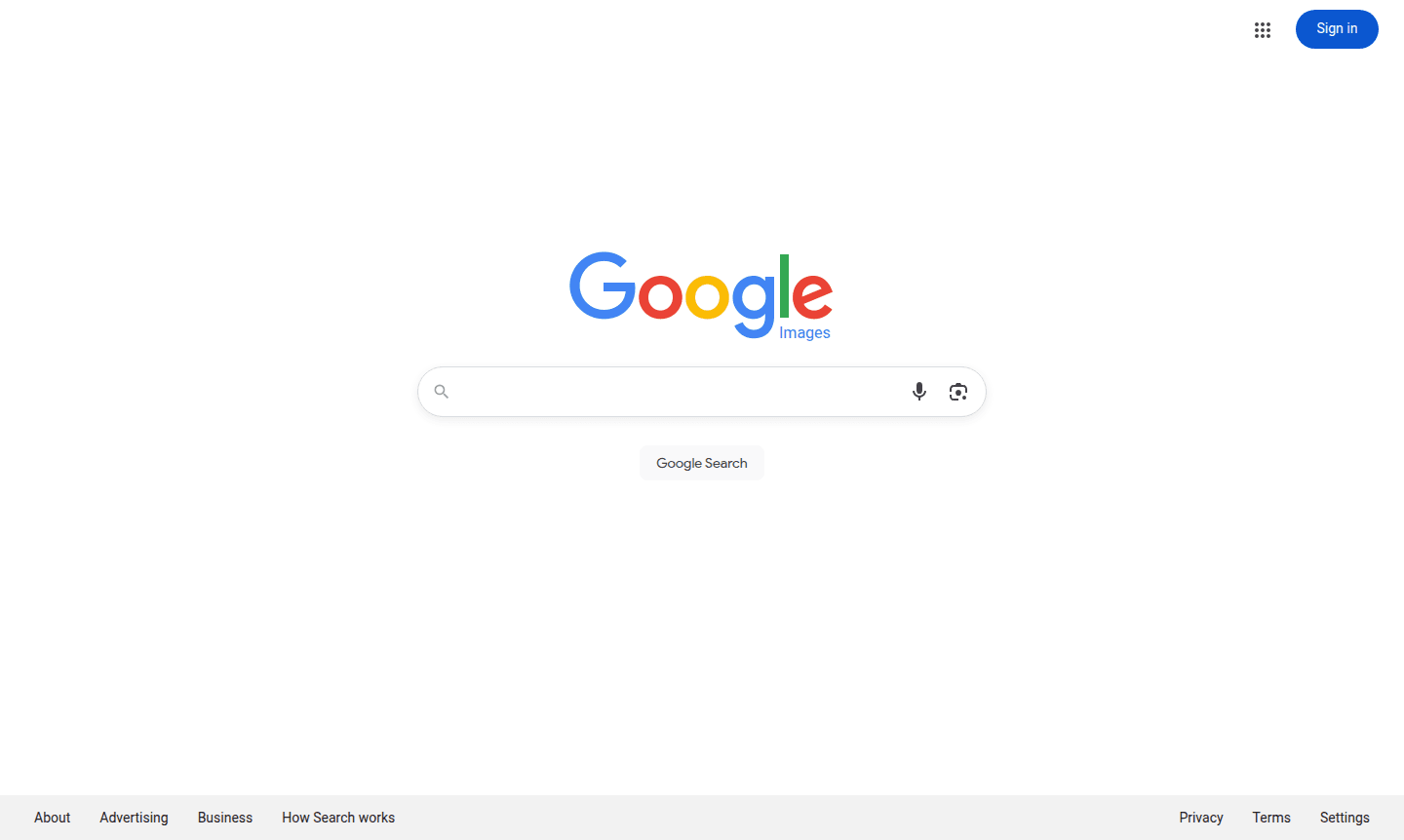
Overview of Google Images
Google Images is the world's most comprehensive image search engine, allowing users to explore the web through visual content. This powerful service from Google enables you to find images based on keywords, file names, adjacent text, and link descriptions. When you search, Google displays thumbnail previews of matching images, and clicking any thumbnail reveals the image in context with its source website. The platform serves everyone from casual browsers to professional researchers, designers, and content creators who need reliable visual references.
The service has evolved significantly with advanced features like reverse image search, where you can upload an image or paste its URL to find similar visuals, identify landmarks, or discover related content. Available in over 40 languages, Google Images works seamlessly across desktop and mobile devices, making visual discovery accessible worldwide. Whether you're looking for inspiration, reference materials, or specific visual content, this tool connects you to the vast visual landscape of the internet through Search Engine technology and Browser Extension Manager integration.
How to Use Google Images
Using Google Images is straightforward: simply visit the website and enter descriptive keywords in the search bar to find relevant images. For more advanced searches, use the filters to refine results by size, color, type, time, or usage rights. To perform a reverse image search, click the camera icon in the search bar and either upload an image from your device or paste the image URL. Google will then analyze the visual content and provide matching results, similar images, and relevant information about the subject matter. The platform also offers browser extensions for Chrome and Firefox that enable right-click searching of any image on the web.
Core Features of Google Images
- Advanced Image Search – Comprehensive filtering by size, color, type, and usage rights
- Reverse Image Search – Upload images or paste URLs to find visual matches
- Mobile Optimization – Full functionality available on smartphones and tablets
- Multi-language Support – Available in 40+ languages for global accessibility
- Safe Search – Content filtering options for family-friendly results
Use Cases for Google Images
- Finding high-quality images for presentations and design projects
- Identifying unknown objects, landmarks, or artwork through reverse search
- Researching visual trends and inspiration for creative work
- Locating image sources and verifying copyright information
- Discovering similar products or visual alternatives
- Educational research and academic reference gathering
- Content creation and social media image sourcing
Support and Contact
For assistance with Google Images, visit the Google Help Center or access the main Google Images website for general support resources. Contact Email: contact@google.com
Company Info
Google Images is developed by Google, headquartered in the United States. Learn more about the company at Google About page.
Login and Signup
Access Google Images directly at images.google.com without requiring login for basic searches. For personalized features, use your Google account at the Google Accounts page.
Google Images FAQ
How does Google Images reverse search work?
Google Images reverse search analyzes uploaded images or URLs to find visual matches, similar content, and identify subjects using advanced computer vision technology.
What filters are available in Google Images search?
Google Images offers filters by size, color, type, time, usage rights, and Safe Search to refine your visual search results effectively.
Is Google Images available on mobile devices?
Yes, Google Images provides full functionality on both mobile apps and desktop browsers with optimized interfaces for each platform.
How can I filter images by usage rights in Google Images?
Use the 'Usage Rights' filter in Google Images to select images based on license types like reuse or commercial use.
Can I use Google Images without an internet connection?
No, Google Images requires an active internet connection to search and display images from the web.
Google Images Reviews0 review
Would you recommend Google Images? Leave a comment
Google Images Alternatives
The best modern alternatives to the tool
New Tools Releases
Recently added tools